


WordPress Plugin
2FA Auth Pilot
TOTP-based two-factor authentication compatible with Google Authenticator, Microsoft Authenticator, Authy, and any standard authenticator app. Includes email OTP backup, recovery codes, and IP whitelisting.
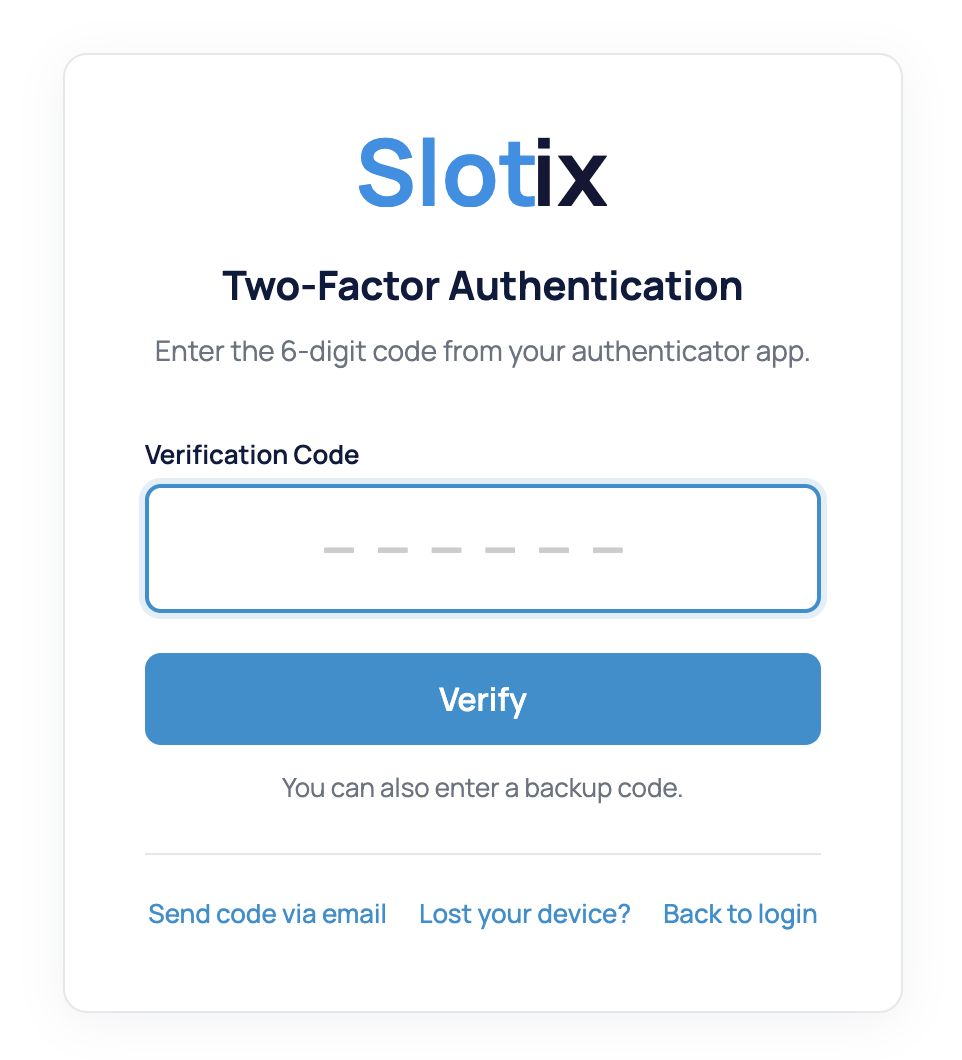
What is 2FA Auth Pilot?
2FA Auth Pilot adds an extra layer of security to your WordPress login by requiring a second verification step — a time-based one-time password (TOTP) generated by an authenticator app on the user's phone. This means that even if a password is compromised, attackers cannot access the account without the physical device.
The plugin supports all standard TOTP authenticator apps (Google Authenticator, Microsoft Authenticator, Authy, 1Password, and more), offers email OTP as a backup method, generates recovery codes for emergency access, and lets you whitelist trusted IP addresses to skip 2FA from known locations.
Key Benefits:
- TOTP authentication compatible with all standard authenticator apps
- Email OTP as backup verification method
- 5-20 recovery/backup codes for emergency access
- IP whitelisting for trusted networks (CIDR support)
- Per-role enforcement: Required, Optional, or Disabled per WordPress role
- Configurable grace period for gradual rollout
- Remember verification for trusted devices (up to 365 days)
- XML-RPC and REST API protection
Key Features
TOTP Authentication
Industry-standard Time-based One-Time Password algorithm. Compatible with Google Authenticator, Microsoft Authenticator, Authy, 1Password, and any TOTP-compatible app. QR code setup makes onboarding instant.
Email OTP Backup
When enabled, users can choose email verification as an alternative to TOTP. A 6-digit code is sent to their registered email address. Perfect for users who don't have their phone handy.
Recovery Codes
Generate 5-20 single-use backup codes during setup. Users can download or copy their codes. Each code works once, providing emergency access when the authenticator app is unavailable.
Role-Based Enforcement
Configure 2FA requirements per WordPress role: Required (must set up 2FA), Optional (can choose to enable), or Disabled. Ideal for enforcing 2FA on administrators while keeping it optional for subscribers.
IP Whitelisting
Skip 2FA for trusted IP addresses or CIDR ranges. Perfect for office networks or VPNs where additional verification isn't needed. Supports both IPv4 addresses and CIDR notation.
Device Memory
The 'Remember Verification' feature lets users skip 2FA on trusted devices for a configurable period (up to 365 days). Reduces friction for regular users while maintaining security.
Admin Interface
Configuration Guide
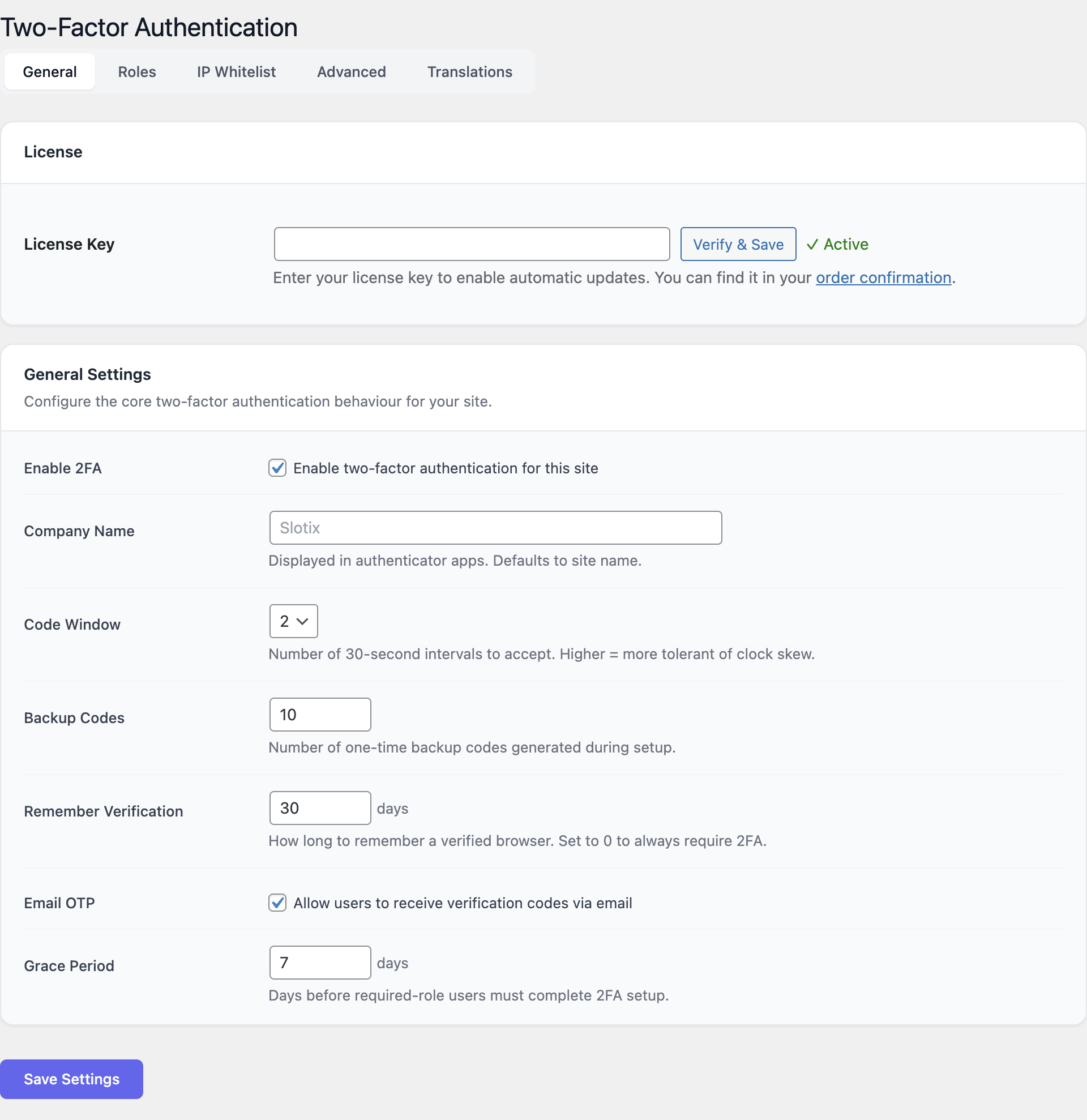
General Settings
Navigate to Settings → Two-Factor Authentication → General tab.
- Enable 2FA: Toggle two-factor authentication globally.
- Company Name: Appears in authenticator apps alongside the user's account.
- Code Window: Tolerance for clock skew (1-4 intervals of 30 seconds).
- Backup Codes: Number of recovery codes to generate (5-20).
- Remember Verification: Days to remember a device (0-365, 0 = always require).
- Email OTP: Enable/disable email as an alternative verification method.
- Grace Period: Days before required roles must complete 2FA setup (0-90).
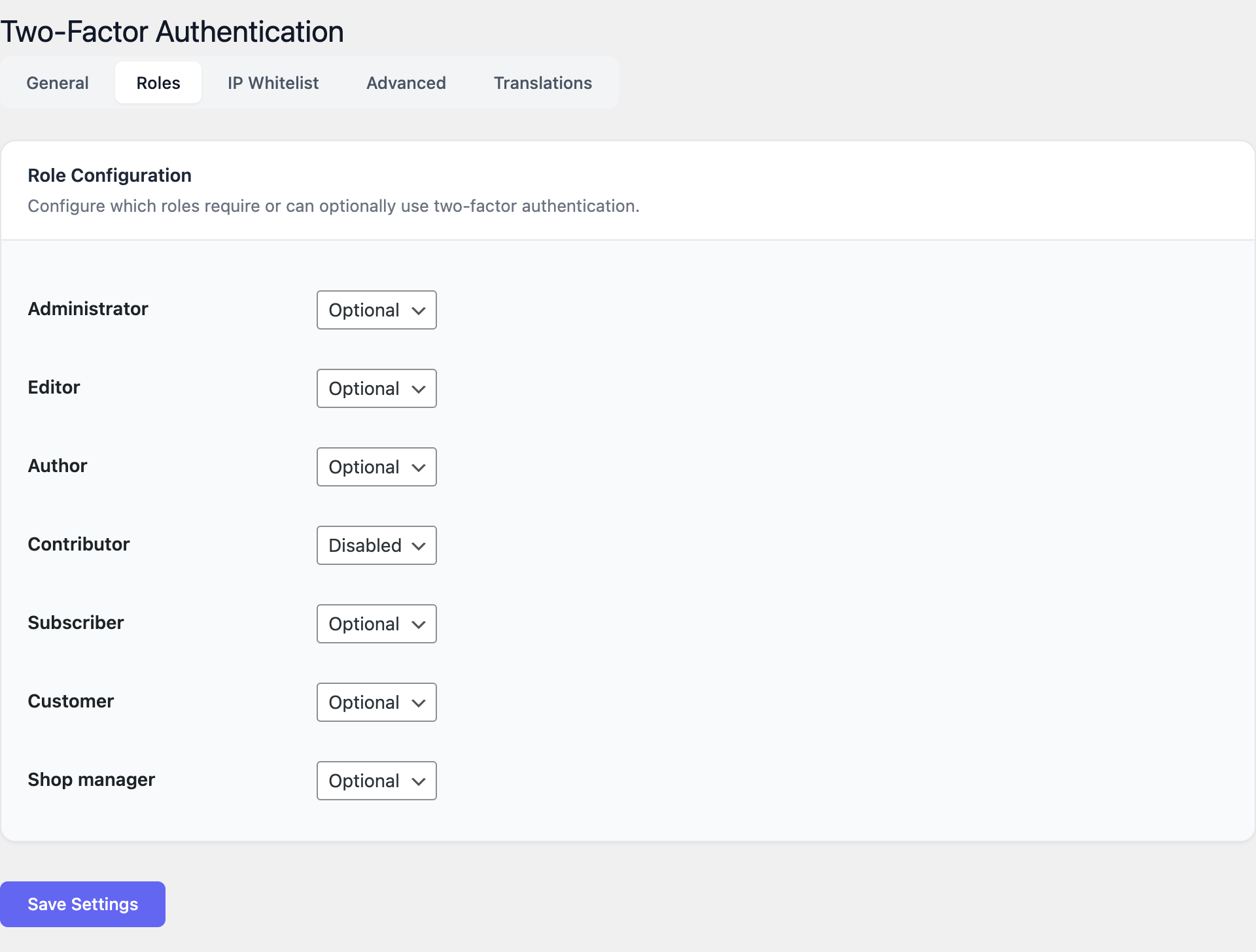
Role Configuration
Navigate to Settings → Roles tab.
For each WordPress role (Administrator, Editor, Author, Shop Manager, Subscriber, Customer), choose.
- Required — User must set up 2FA within the grace period.
- Optional — User can choose to enable 2FA.
- Disabled — 2FA is not available for this role.
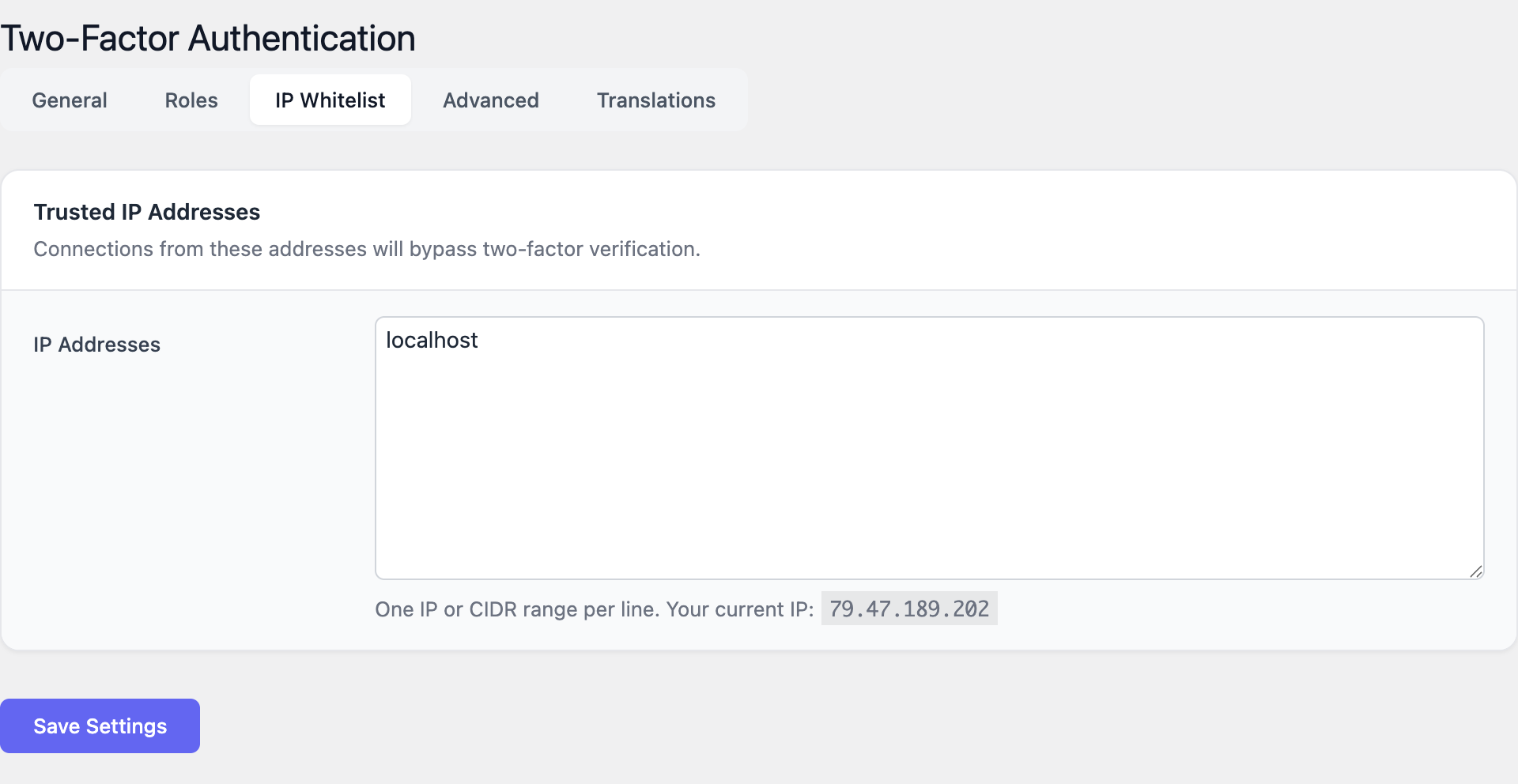
IP Whitelist
- Navigate to Settings → IP Whitelist tab.
- Enter trusted IPs or CIDR ranges, one per line. Example:
192.168.1.100or10.0.0.0/8. - Users logging in from whitelisted IPs skip the 2FA step.
Advanced Settings
Navigate to Settings → Advanced tab.
- XML-RPC Protection: Require 2FA for XML-RPC requests.
- REST API Protection: Require 2FA for REST API authentication.
- Data Removal: Remove all plugin data on uninstall (use with caution).
Getting Started
- Install and activate 2FA Auth Pilot.
- Go to Settings → Two-Factor Authentication.
- Enable 2FA and set your company name.
- Configure role requirements in the Roles tab (start with 'Required' for Administrators).
- Each user sets up 2FA from their profile page:
- Step 1: Scan the QR code with their authenticator app.
- Step 2: Enter the 6-digit verification code to confirm setup.
- Step 3: Save the backup recovery codes in a safe place.
- Test the login flow — after entering username/password, a 2FA code prompt appears.
Secure Every Login
Add two-factor authentication to your WordPress site in minutes.